
Schedule Online
Students can schedule AEC support services through their single sign-on using the AEC TutorTrac app in their Microsoft Office 365 account.
See below for more detailed instructions.
Go to Microsoft Apps
TutorTrac Scheduling Instructions
Step 1: Sign into Microsoft 365
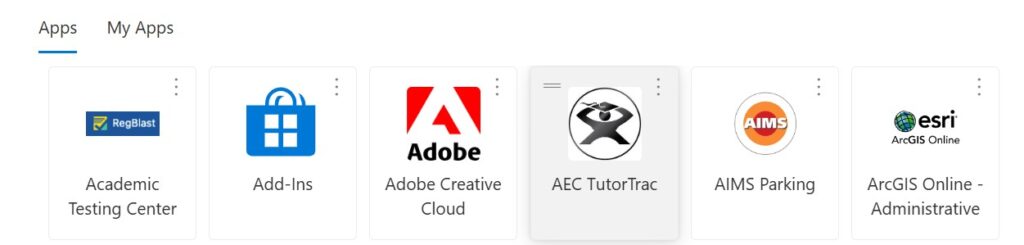
Sign into Microsoft 365 using your single sign-on. Select the AEC TutorTrac app.
Step 2: Select a service
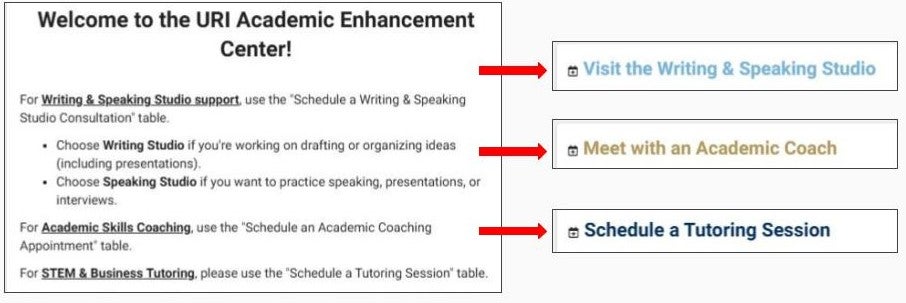
On the AEC TutorTrac main page, select a box for the service you’d like to schedule:
- Writing & Speaking Studio
- Academic Coaching
- Content Tutoring
Step 3: Choose course information and preferences
Your student information will already be populated with your enrolled courses. Select your course information and session preferences in the scheduling menu.
- If you are visiting for support in a particular class, choose that Course or Subject.
- If you are looking for general support not tied to a particular class, select Not for a course/other. For example:
- Writing: Personal statements for graduate applications
- Speaking: Interview practice for career preparation
- Academic Coaching: Planning your semester schedule and balancing priorities
Step 4: Search for appointments
Select Search to view available appointments.
Note: Scheduling menu options will vary slightly between program areas.
Need Help Logging In?
Please contact the URI IT Service Desk if you need assistance logging into your Microsoft portal.