
All course registration is through e-Campus. The following directions will help you with registering for your classes. For guidance on which courses you should take, please contact your academic advisor.
REGISTER
CHECK FOR HOLDS
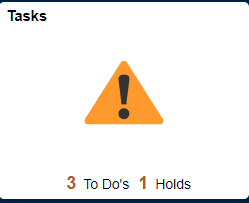
Use the Tasks tile to view your Holds. A Hold may prevent from you enrolling in your classes. Contact our registration staff for information on resolving Holds.
ADD A CLASS
- From the Student Homepage in e-Campus, use the Manage Classes tile to find and
enroll into classes (start by clicking on Class Search and Enroll). - In addition, you can view your current classes and your weekly schedule.

- Search for classes by keywords and enroll in classes.
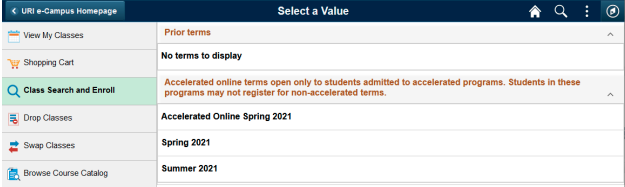
- Class Search will look for your keywords in course titles and descriptions, catalog numbers, and instructor last names.
- Enter specific keyword(s) for immediate retrieval of courses, for example course title, topic, subject and catalog number, class number.
- You could type the Subject, Catalog Number, or even a keyword that may be associated with the class. For example, you could type something like “creative writing”.
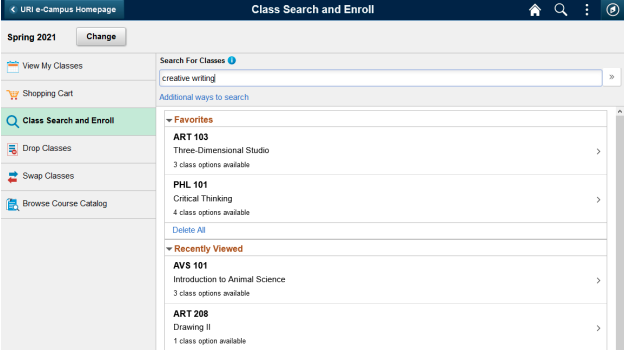
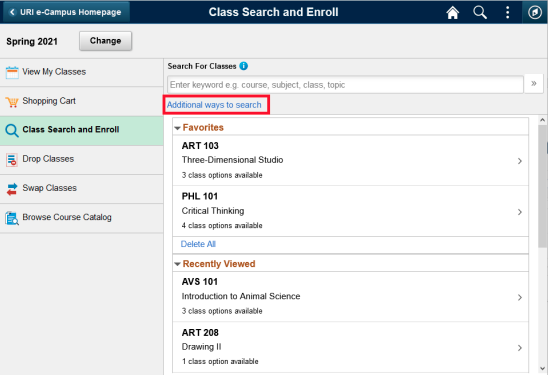
- The search will produce results of your search, including a number of filter search options on the left side of the screen. This allows you to narrow your search based on your selection criteria.
- See the next screenshot as an example.
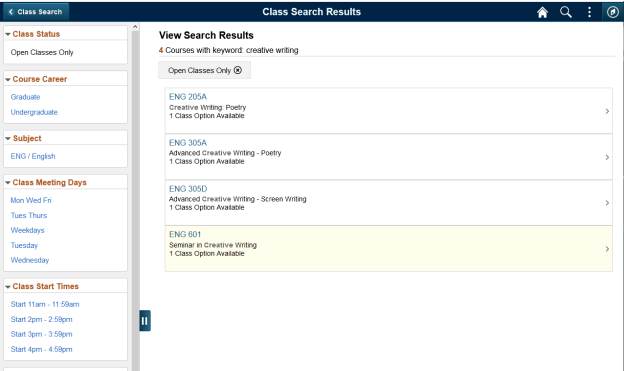
- Notice the different filters on the left side to narrow your search results. You may also use the “Additional ways to search” to refine your search based on the course catalog number, subject, or instructor last name.
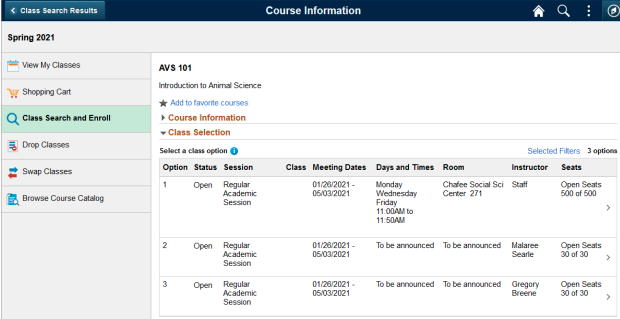
- Once you select the class each section will be listed.
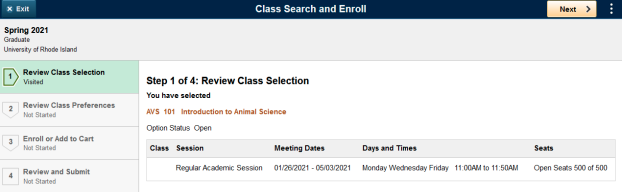
- You may click on any row to begin registration into that respective class; or you may add to Shopping Cart for another time. See below for the final process.
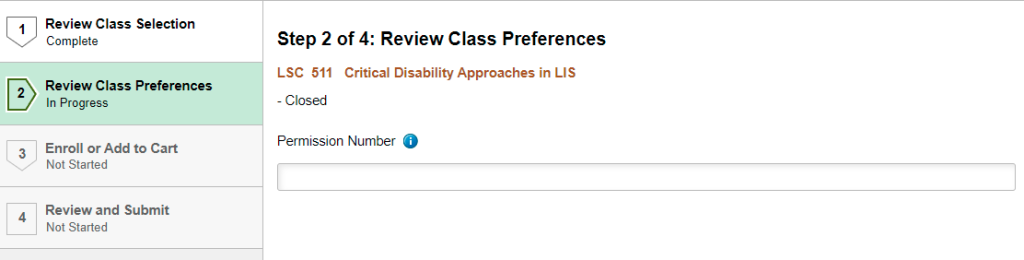
- You may need a Permission Number to finish enrollment. Contact your instructor to receive a permission number.
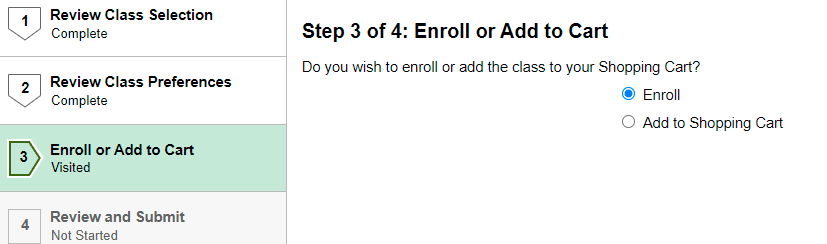
- On the final step hit “Submit”.
SHOPPING CART
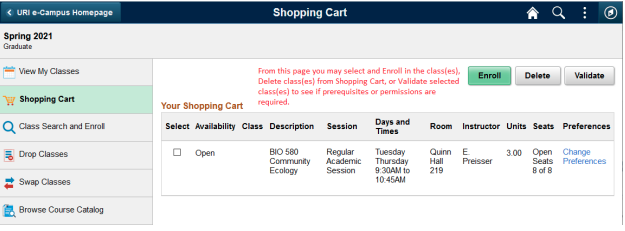
- Intuitively review and enroll in classes from your Shopping Cart. You can also validate that the courses in your Shopping Cart are still open or what is needed for your program.
DROP/SWAP A COURSE
- Login to e-Campus.
- From the Student Homepage in e-Campus, use the Manage Classes tile and navigate to “Drop Classes”
DROP
- Select the term.
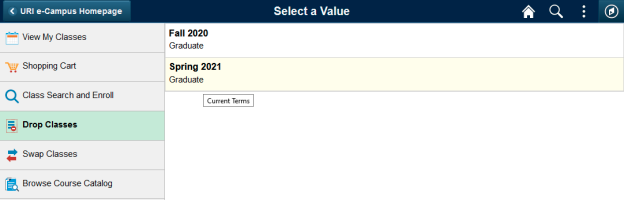
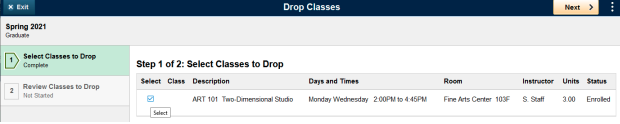
- Select – and then click “Next”.
- After selecting course(es) to drop, click the “Drop Classes” button.

- Confirm that you wish to drop the class.
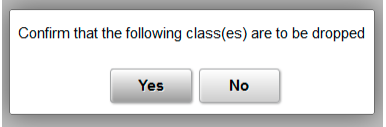
- Exit at any time.
SWAP
You may also Swap classes in your schedule (dropping one class and adding another
simultaneously)
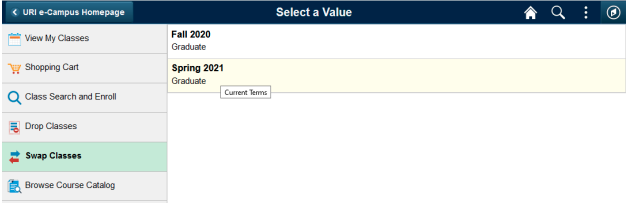
- First, select the Term. Then you will select the class(es) to Swap (Drop and Add)
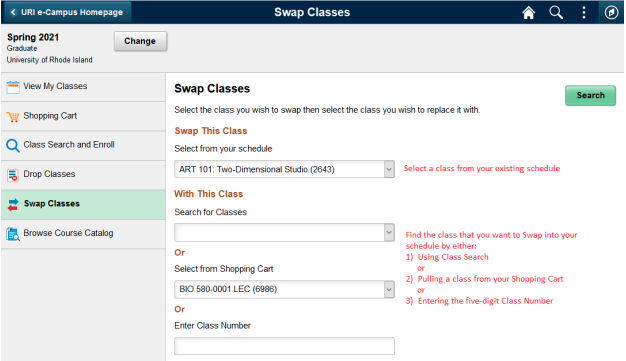
- Click Search
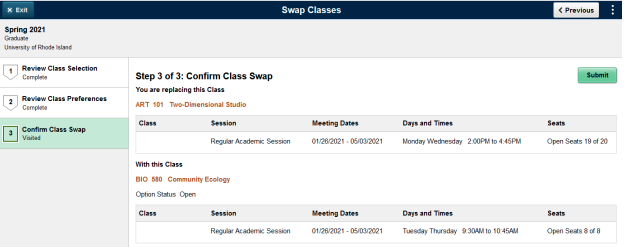
- Submit to process the Swap
READMIT
Follow the instructions for guidance on readmission to a degree program.
WITHDRAW OR LEAVE
Follow the information and guidance on filing for a leave of absence or withdrawing from a program.
AUDIT A COURSE
Please be advised that accelerated, fully online courses cannot be audited.
An auditor is a person who has permission to attend a course but is not taking it for credit or a grade. Admission to the class is on a space-available basis and requires the instructor’s consent as indicated by his or her signature on an audit authorization form, which must be filed in Enrollment Services before the end of the “add” period (14 days in Fall and Spring semesters, deadlines according to the academic calendar for Summer Sessions and J term) . The instructor determines the extent of the auditor’s participation in class activities.
The auditor’s name does not appear on official class rosters, no grade is issued, and the course is not noted on an end-of-term grade report or permanent academic record (transcript). A degree-seeking student enrolled in at least one other course may audit a course without tuition charges, though course fees may apply. All other persons are charged an amount equivalent to tuition for one credit and course fees, if there are any, which must be paid at the time of handing in the audit authorization form. Auditing is not permitted in noncredit courses.