
Quick Links:
What is Kuali Curriculum Management?
Access & Logging into Kuali
The Kuali Dashboard
Searching Curriculum in Kuali
Record Status
Proposal Status
What is Kuali Curriculum Management?
Kuali Curriculum Management (CM) is the system used at URI to manage university-wide curricula, the curriculum approval process, and the official academic catalog.
Kuali vs. Catalog vs. eCampus
- Kuali CM is the cloud-based system used to manage the curriculum approval process through forms and workflow.
- The URI Academic Catalog is built in Kuali and pulls information directly from all course, program, and specialization records.
- Kuali CM integrates with eCampus. When a course is approved in Kuali, the information is sent to eCampus and updated for a future term.
Why does this matter?
Information entered into Kuali curricular forms (course, program, and specialization proposals) flows directly into the catalog and eCampus. It is essential that proposals are written clearly and leave no room for interpretation.
Access & Logging into Kuali
Access to Kuali CM is limited to faculty, Deans, and select administrators and staff. Only faculty members are permitted to submit proposals.
To request access or learn how to log in, visit the Faculty Senate’s Kuali Access page.
The Kuali Dashboard
When you enter Curriculum Management, the dashboard serves as your homepage. From here, you can view your proposals and Action List.
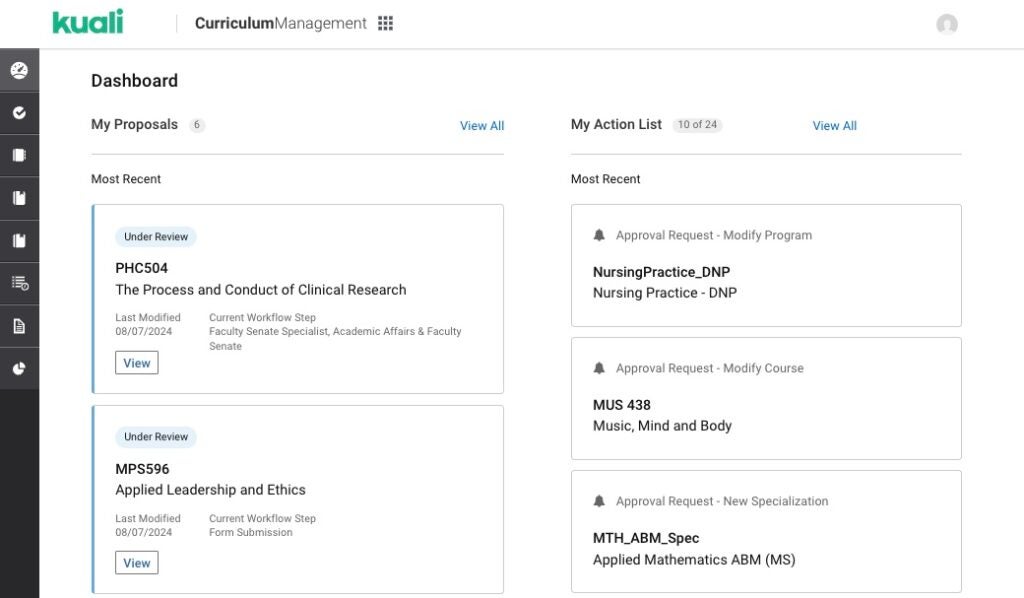
My Proposals
My Proposals allows you to:
- Find your drafts and continue working where you left off.
- View submitted proposals and their current workflow status.
- Access your proposals directly from the dashboard without searching for them.
Any items you were working on prior to submission appear as drafts. You can access all drafts from this section to continue editing or delete them.
The View All link to the right of My Proposals opens a full list of your proposals, which can be filtered, downloaded, and/or printed.
My Action List
My Action List displays your ten most recent requests that require action, such as reviewing for approval, acknowledging, or editing and returning to the workflow after being sent back by a reviewing committee.
Navigation Bar
Use the menu on the left-hand side of the screen to access all courses, programs, specializations, and proposals (draft, under review, or approved).
Searching Curriculum in Kuali
Use the search bar at the top of each page (Courses, Programs, Specializations, and Proposals) to find specific records.
You can also use the filters on the right side of the page to narrow your results.
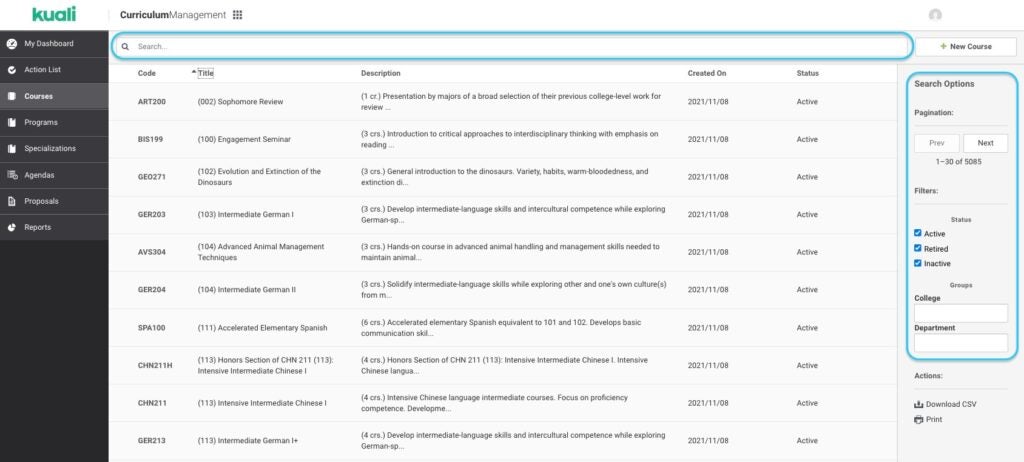
Status
Status allows you to find all curricular records based on the following conditions:
- Active: Records that are currently active or will become active in a future term.
- Inactive: Records that have been deleted.
- Retired: Not currently used by URI.
Groups
Groups allow you to locate all curricular records owned by a specific department or college.
Record Statuses
A colored bar appears at the top of every course, program, and specialization record. The color of this bar indicates which version of the record you are viewing.
Current

A green bar indicates that you are viewing the current version of the record. For most records, the earliest version of the item is from Fall 2022, when URI began using Kuali. Historical versions of curricular records prior to Fall 2022 are available in eCampus.
To view earlier versions of a record, use theuse the arrows next to the term dates to expand and view earlier versions. If the record has been updated since Kuali was implemented, previous versions will be available for selection.

Past

Past versions of curricular records are indicated by a gray bar. This also applies to inactive records.
Future

Records scheduled to begin in a future term are indicated by a purple bar.
Proposal Statuses
Draft

When you initially create a new record or propose changes to an existing one, it is considered a draft. The document will remain in draft status until it is submitted to the workflow or deleted. A yellow bar at the top of the record indicates a draft.llow.
Under Review

When a proposal is submitted to the workflow, its status changes from Draft to Under Review. The bar turns blue.
Denied

When a proposal is denied by an approver, its status changes to Denied and it is removed from the workflow.